
How to Use Our Printable Sticker Sheets: A Quick-Start Guide for Cricut & Silhouette
So you just downloaded a sticker sheet from Raelene Raechelle — here’s exactly what to do with it.
What’s in your download
Every sheet comes as four files, and each one has a job. The PNG is your finished artwork with a transparent background, great for printing at home or dropping into other projects. The PDF is the full sheet, ready to print exactly as designed. The SVG has the artwork and cut lines together, built for Cricut Design Space or Silhouette Studio. And the DXF is the cut line only, for machines that need it separate.
Printing tips
Print on sticker paper or matte cardstock for the best results, and set your printer to its highest quality setting — that keeps colors true and lines crisp. If you’re hand-cutting, a fine-tip pair of scissors or a craft knife makes quick work of it.
Cutting with a Cricut or Silhouette
Load the SVG file into Design Space or Silhouette Studio, use the print-and-cut feature, and let your machine follow the built-in cut lines — no manual tracing needed.
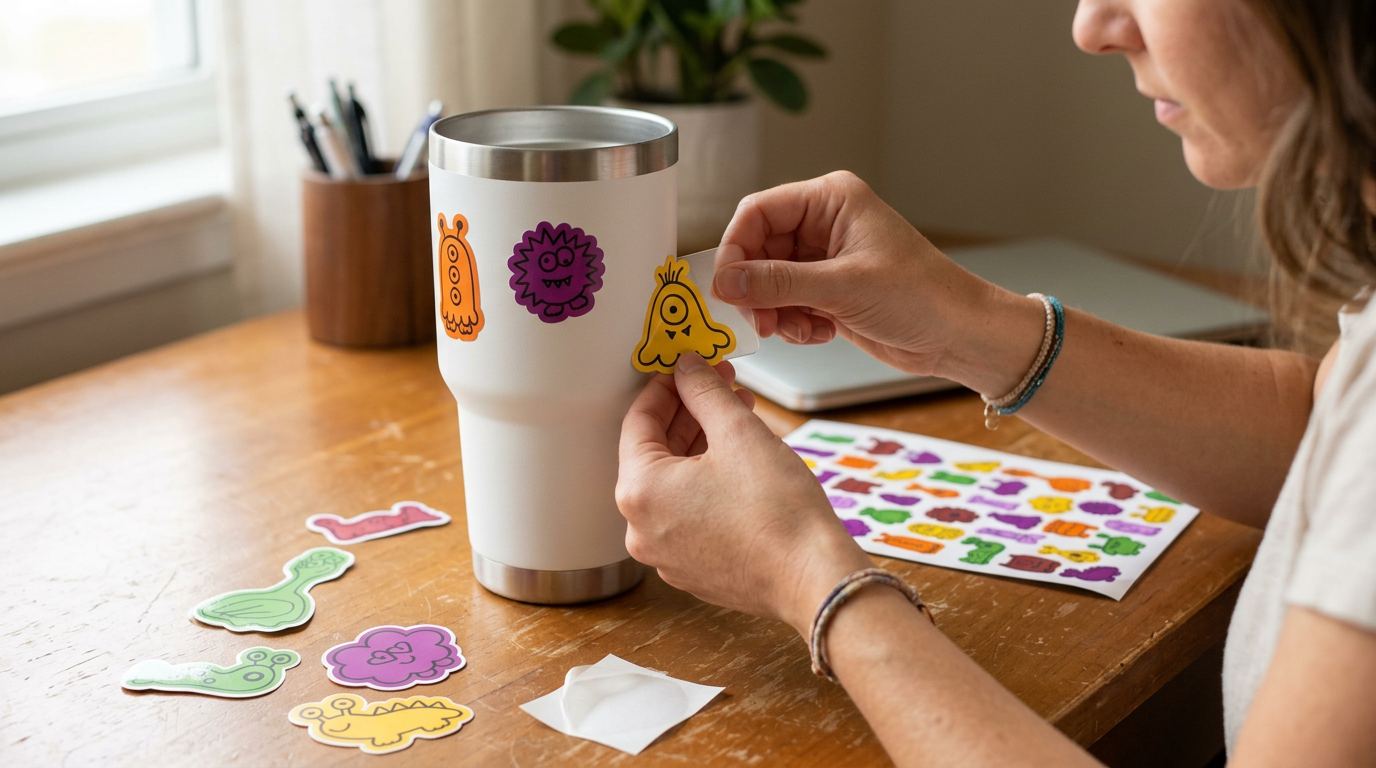
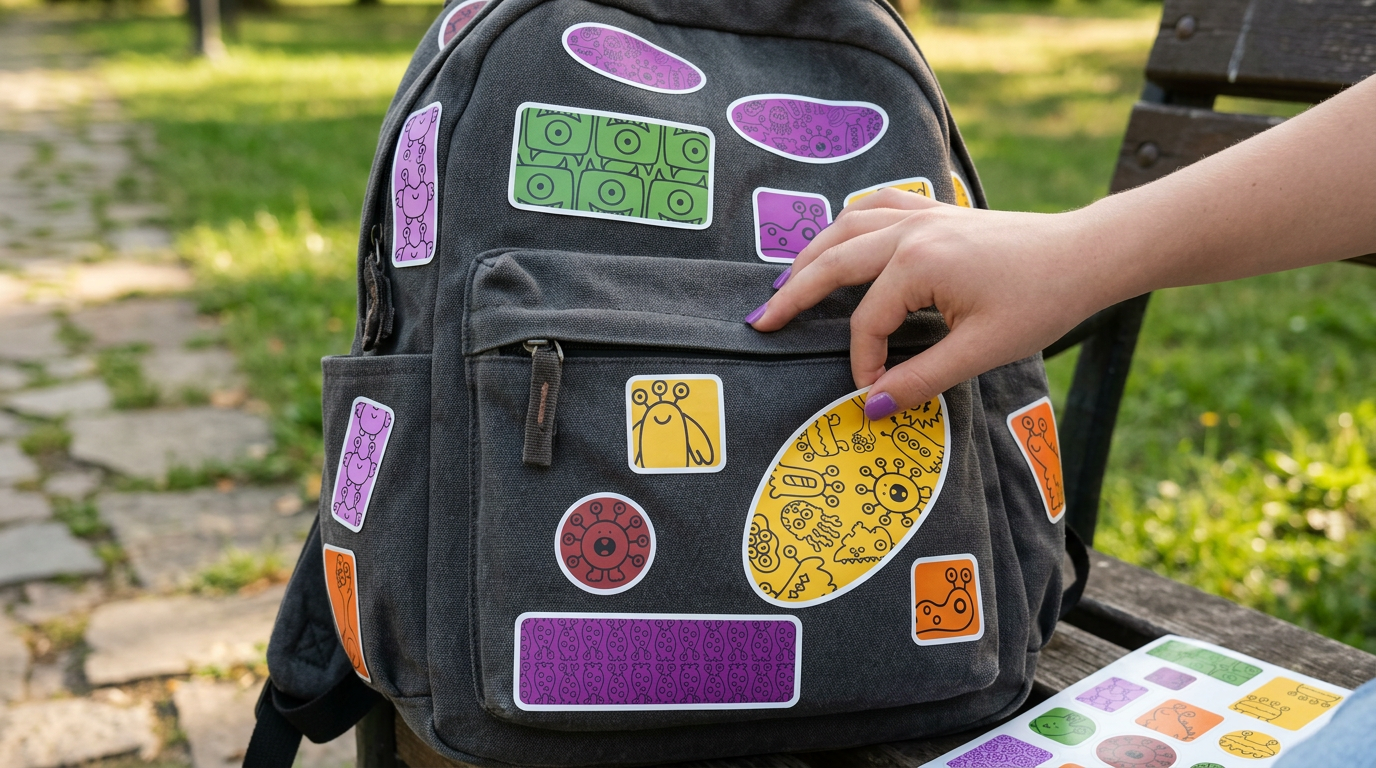
From there, the possibilities are wherever you want to put them: planners, water bottles, laptops, backpacks, you name it.
A quick reminder
These files are for personal use only — please don’t resell or redistribute them. Have a question about your download? Send us a message, we’re happy to help.